Free · No account · No watermark · Nothing uploaded

QR codes for wedding cards, birthdays and invitations

Add a scannable code to your invitation — or turn a photo into the code itself, so the pattern is a recognisable face. Made in your browser, free, with nothing uploaded.

✓ Free forever ✓ Never expires ✓ PNG & SVG ✓ Photo as the code

Make your QR code →

Examples

What it looks like on a real card

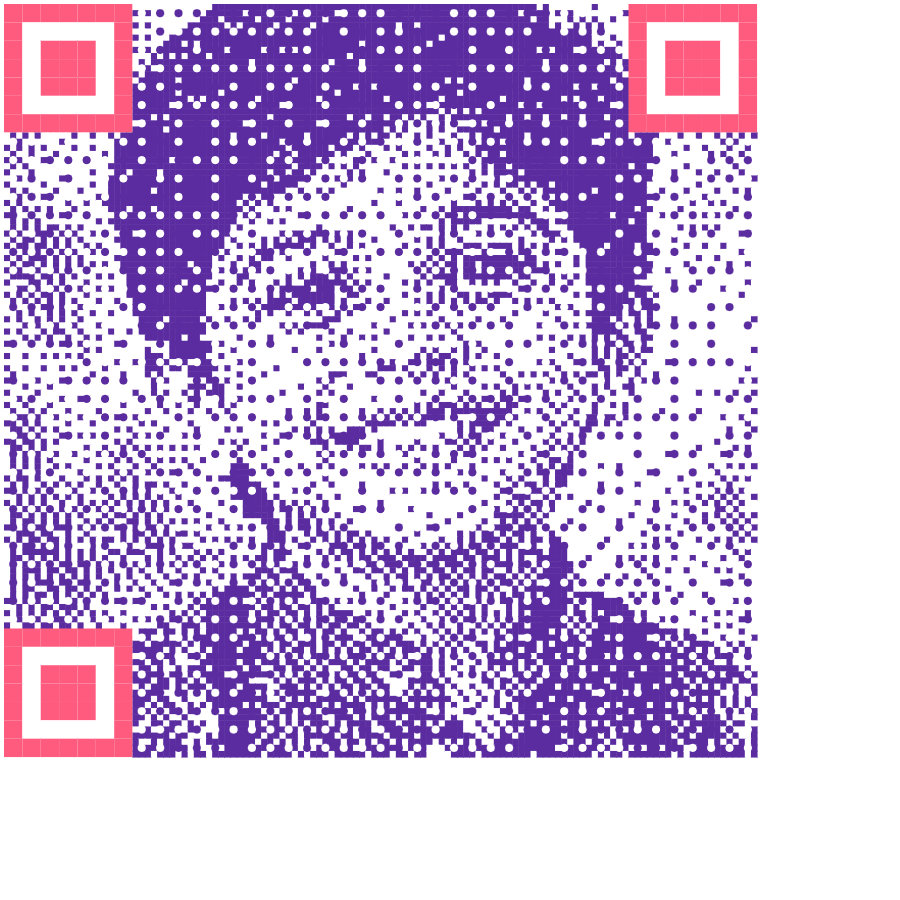
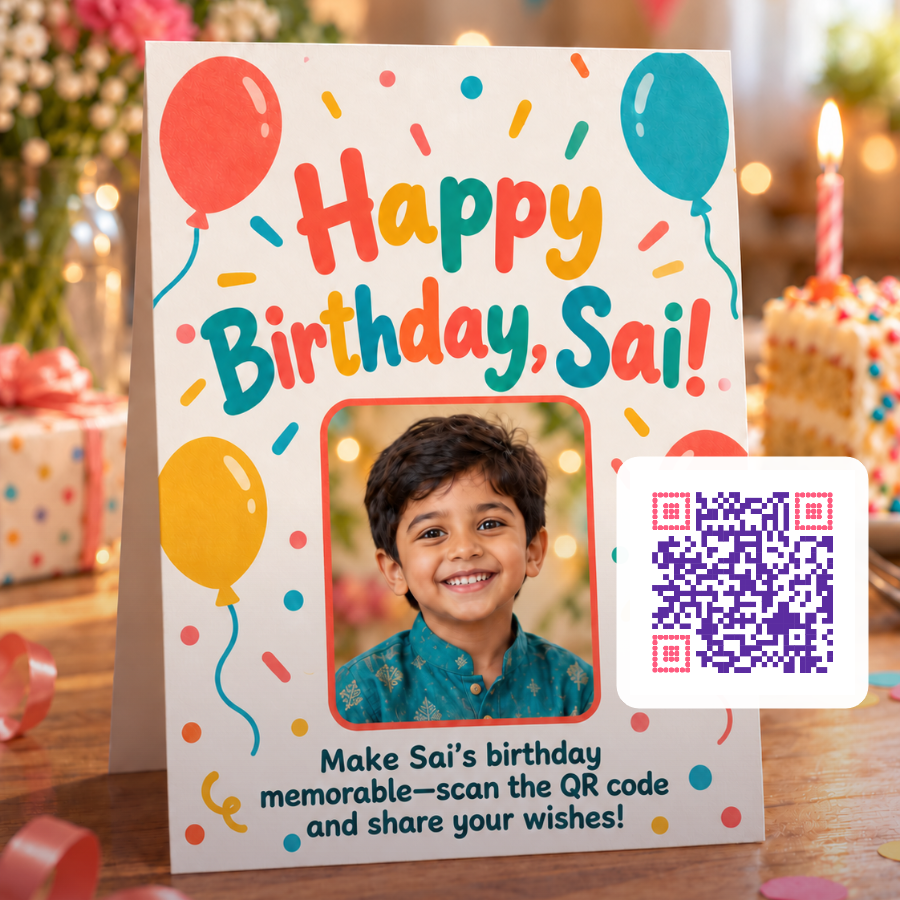
Three examples made with this tool. The third is the one worth looking at closely — that pattern is a photograph.
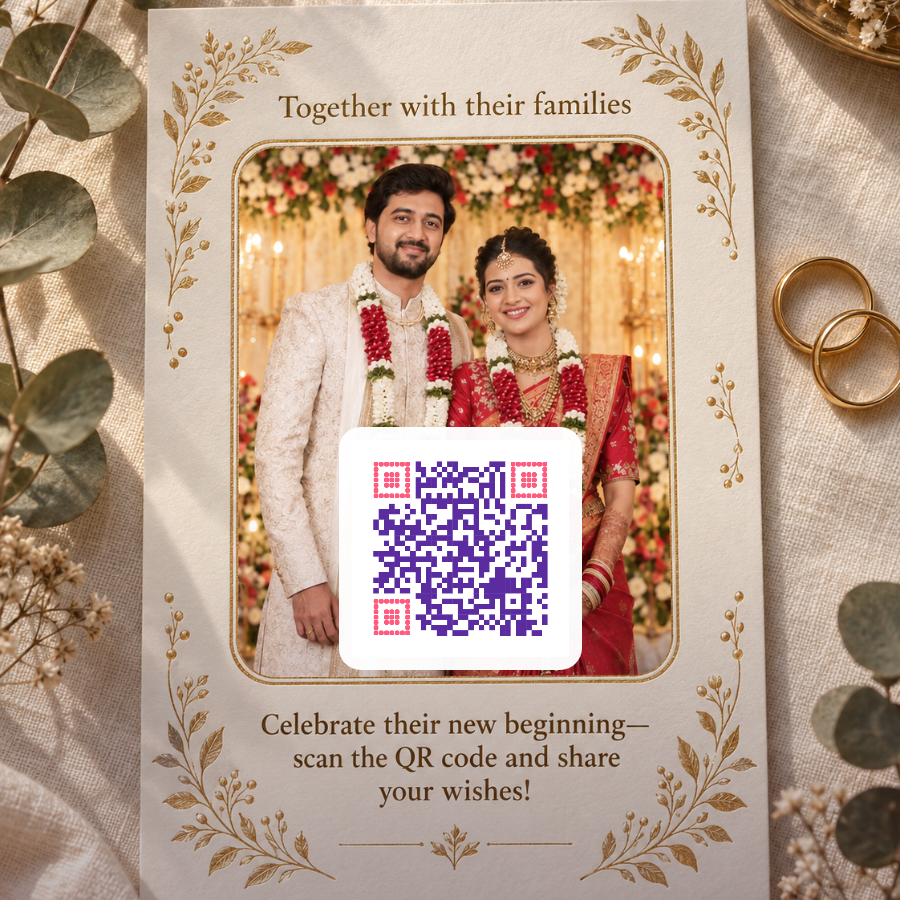
Wedding invitation card with a QR code linking to the couple’s photo album
Wedding invitation — the code links to the couple’s album
Birthday card with a QR code guests scan to share wishes
Birthday card — guests scan to leave a message
A working QR code where the pattern itself forms a child’s face
The photo is the code — and it still scans

Occasions

What people use it for

Weddings

Point guests at your photo album, a video invitation, directions to the venue, or an RSVP form. A halftone code made from your engagement photo turns the code itself into part of the design.

Birthdays

Link to a video montage or a page where guests leave wishes. Made from the birthday person’s face, the code becomes the keepsake rather than just a link.

Housewarming

Share directions, parking notes and a gift registry without cluttering the card. Guests scan once and have everything on their phone.

Baby showers and naming ceremonies

Link to an album, a livestream for family who cannot travel, or a page collecting name suggestions and blessings.

Engagements and receptions

One code can carry the whole schedule, so the printed card stays clean and you can update the page afterwards.

Business cards

A code made from your own headshot is far harder to throw away than a plain square, and it can link to your portfolio or LinkedIn.


How it works

Three steps

Step 1

Choose what it opens

A photo album, a video, directions, an RSVP form — anything with a web address. Paste that link into the tool.

Step 2

Style it

Pick colours to match your card, add a logo in the middle, or use Photo inside QR to render a face into the pattern.

Step 3

Download and print

Save as PNG for digital or SVG for print, then hand it to your designer or printer. Scan the proof before the full run.

Open QR Studio →


Before you print

Three things worth knowing

Size matters more than you think

A plain code needs about 2cm across on paper. A photo halftone needs nearer 3cm, because the pattern is busier and a camera has more to resolve. Smaller than that and guests will struggle at the venue.

Test the actual proof

Scan the printed card, not the file on screen. Ink spread, paper finish and lighting all change how a code reads. Matte paper scans better than gloss under venue lighting.

The link has to outlive the card

The address is baked into the pattern, so the code never expires — but the page it points at can. Use a link you control and will not delete, not a temporary share link.


Step by step

How to make an invitation QR code in QR Studio

  1. Get the final link for your album, video, RSVP form or map pin, and open it in a private browser window to check that it loads for someone who is not signed in to your account.
  2. Open QR Studio, paste the link into Website URL on the URL tab and press Generate QR.
  3. Switch to the Photo tab and choose a style: Full photo + QR, Face mosaic or Photo inside QR. Then upload a PNG, JPG or WebP photo under 8 MB.
  4. For Full photo + QR, set QR size and drag the code to a quiet corner of the picture. For Photo inside QR, set Photo detail and Face contrast, then click the style button again so the preview redraws with the new values.
  5. Match the code to your card with QR colour and Corner colour, keeping both clearly dark. Background applies to plain codes and to Photo inside QR; the other two photo styles use their own white or lightly tinted background.
  6. Press Download PNG, place the image in your card design and scan the result from the screen before sending it to print.

Tips for invitation codes

Which photo style to choose

Full photo + QR is the safest choice: your picture stays whole and the code sits on its own white panel, so it scans like an ordinary code. Face mosaic tints each square of the code by the brightness of your photo, which keeps the code clean but makes the face soft and abstract. Photo inside QR rebuilds the photo out of tiny dots around fixed centre points, so the face is the most recognisable of the three; it is also the style that needs the most careful testing.


FAQ

Frequently asked questions

Yes. Create the code here, download it as PNG or SVG, and place it on your card design or send it to your printer. It costs nothing and there is no account to make.
Anything with a web address. Couples usually point it at a photo album, a video invitation, venue directions, or an RSVP form. For birthdays a video message works well.
No. The web address is encoded into the pattern itself rather than pointing at our server, so the code keeps working for as long as the destination does.
Yes. The Photo inside QR mode renders your photo into the pattern, so the code is recognisably a face while still scanning normally.
At least 2cm across for a plain code, and nearer 3cm for a photo halftone because the pattern is busier. Always test the printed proof with a phone before the full run.
Yes. No account, no watermark, no limit on how many codes you make. Everything is generated in your browser, so your photos are never uploaded.
Yes, from another screen or a printout. A guest reading the invitation on the phone they would scan with cannot point its camera at itself, so put the plain link in the message as well.
No. The message above the code in QR Studio is only shown on the preview card. The downloaded PNG or SVG holds the code itself, plus your logo or photo, so add a line such as “Scan for our album” in your card design.
Not the code itself, because the address is written into the pattern. If plans might change, point it at a page or form you can keep editing, and update that page instead.